When something goes wrong
The quickest way to get help is to upload your logs and send us the upload ID. Below you will also find what to do about orange notices in the device list, what is in Settings, and answers to common questions.
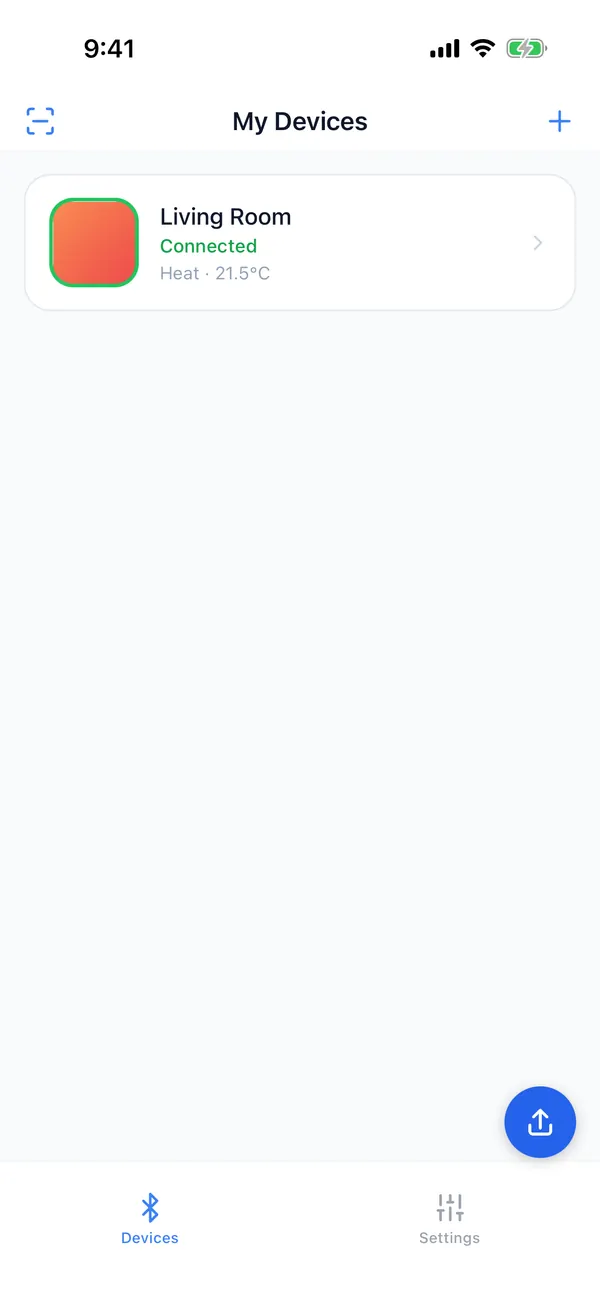
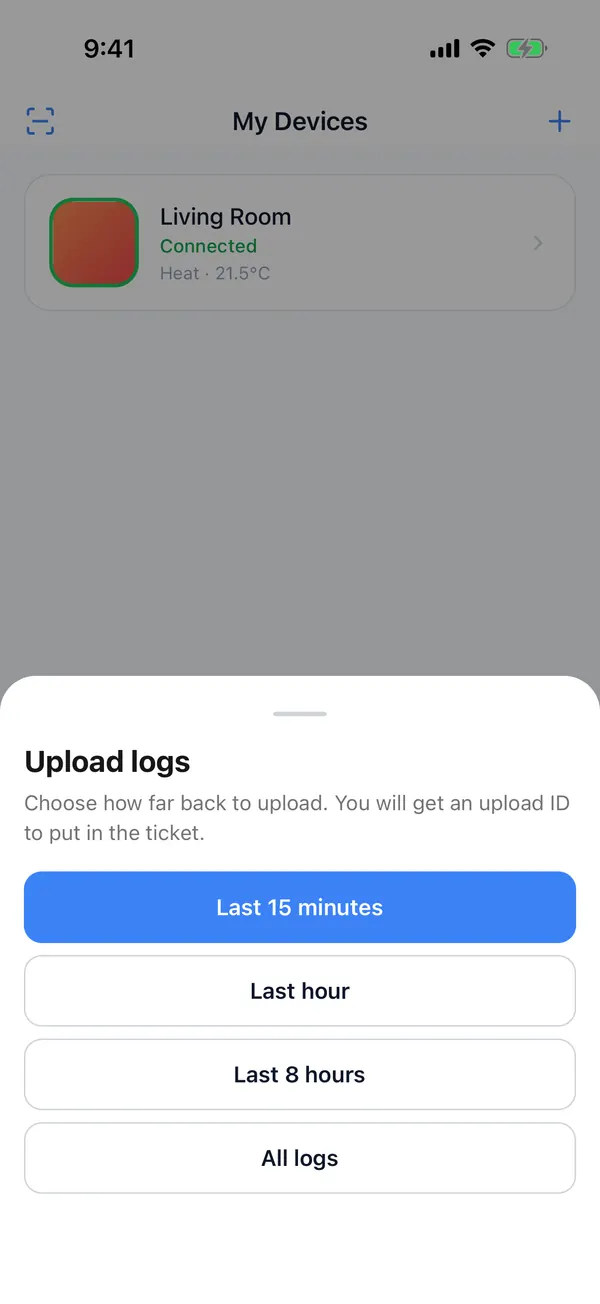
Upload your logs and send us the upload ID
The app keeps a log on the phone. With the upload ID we can find your logs and see what the app and the device were doing when the problem happened.
- 1
Tap the blue upload button at the bottom right
It is on both the Devices and Settings tabs.
- 2
Choose a time range
Last 15 minutes, Last hour, Last 8 hours or All logs. Choose the shortest range that covers the problem; if the logs exceed 50 MiB, the app asks you to choose a shorter range.
- 3
Copy the upload ID and send it to us
When the upload finishes, the app shows the "Upload ID". Tap "Copy" and send it to us with a description of the problem. Earlier uploads are listed under "Upload history".
Can't see the upload button?
Release builds hide this button by default. Open Settings, tap the "Version" row 7 times to unlock Developer Options, then turn on "Show Log Upload Button".
You can also export a log file: Settings → Diagnostics → Export Logs. Choose Last hour, Last 24 hours, Last 7 days or All logs, and send the file from the system share menu.
Orange notices in the device list
Orange status text means the device record needs attention, and the app cannot control the device until it is sorted out.
Saved credentials may no longer be valid
The last time it connected, the device rejected the credentials saved in the app. It may have been factory reset or paired again with another phone.
Open the device, remove it as the screen suggests, then add it again.
Protocol upgraded - pair again
This record was paired with an older version of the app or imported from an export file, and the current app cannot use it directly.
Pair the device again.
Storage recovery required
The key saved in the app no longer matches the device.
In the device settings, tap "Remove Only from App" to delete the record, then pair the device again.
If the controls cannot be opened, the screen explains why and offers three buttons: "Retry", "Back" and "Remove Device". Follow the explanation; if the reason is unclear, retry first or update the app. "This product has no applet yet" means the product has no controls available yet.
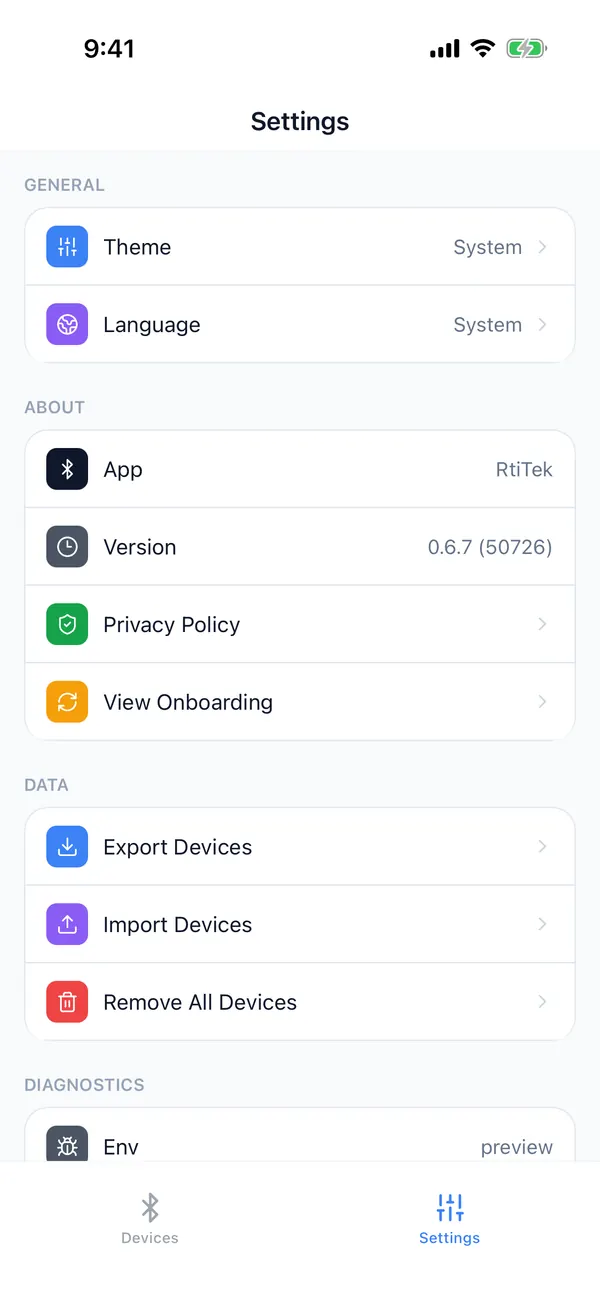
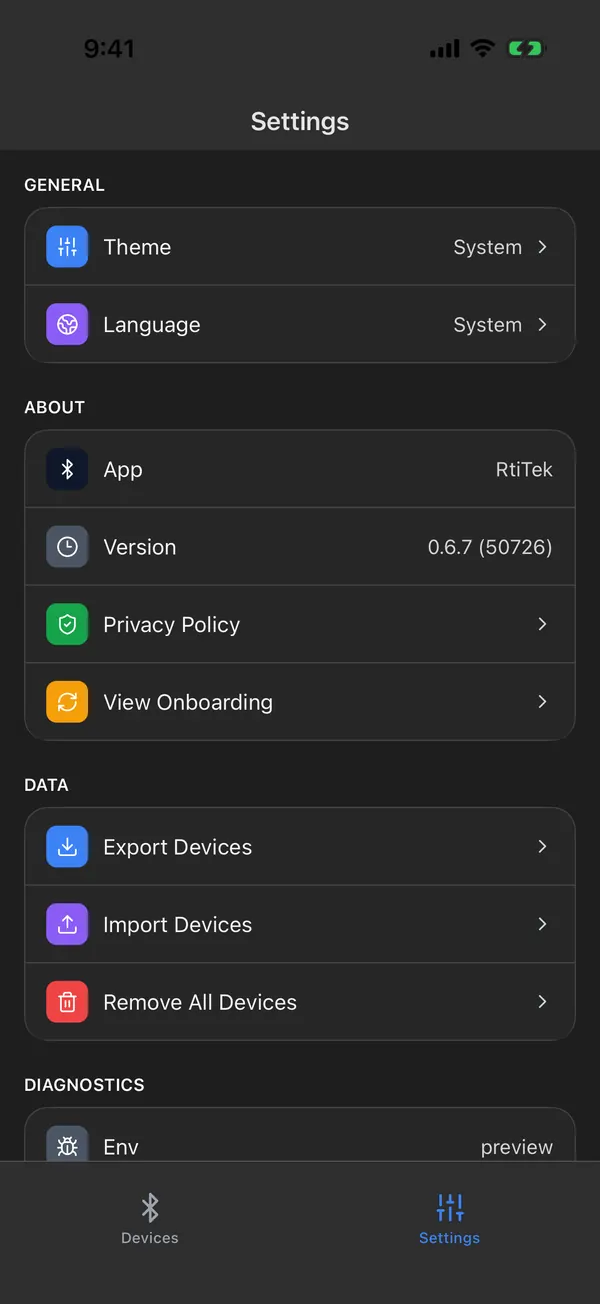
What is in Settings
Settings is on the right of the tab bar at the bottom.
- 1
Theme
System, Light or Dark.
- 2
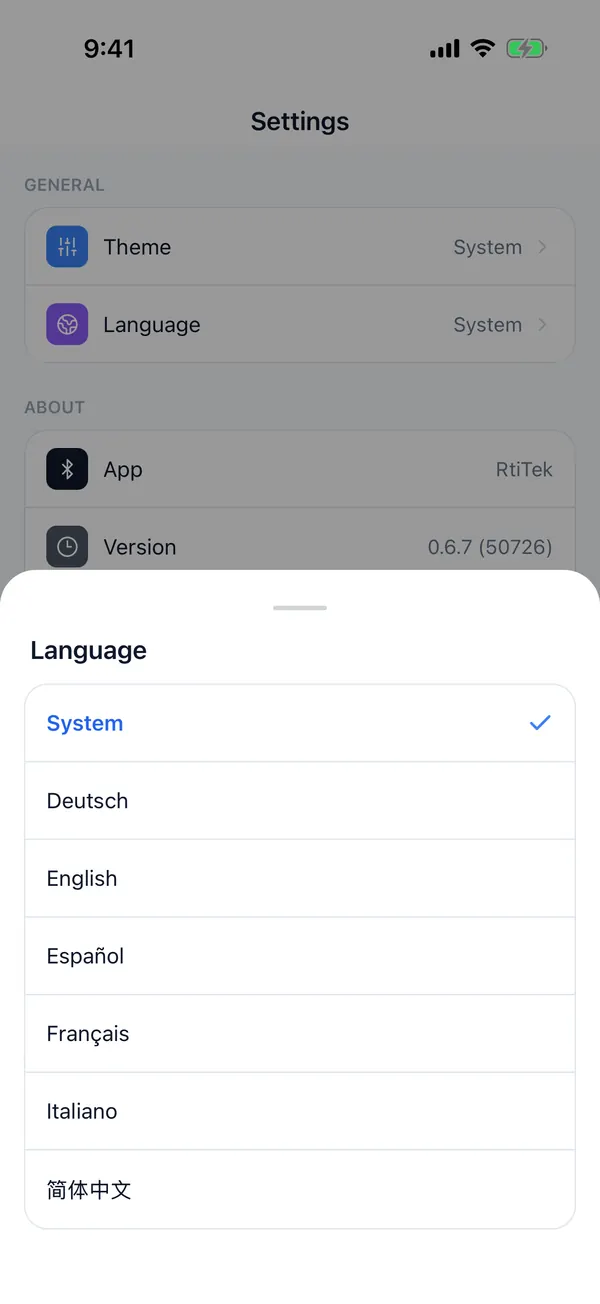
Language
System, or one of Deutsch, English, Español, Français, Italiano and 简体中文.
- 3
Version
Shows the app version. Tap it 7 times to unlock Developer Options, which hold switches for testers.
- 4
Data
Export Devices, Import Devices and Remove All Devices. Exported files contain no pairing credentials, so imported devices must be paired again.
- 5
Diagnostics
Build details, Export Logs and Clear Logs.
Common questions
A device keeps showing "Not in range"
The phone has not received its Bluetooth signal for more than 20 seconds. Check that the device has power and is not far from the phone. A device connects to one phone at a time; if another phone is connected to it, disconnect on that phone first.
A device keeps connecting after I open it
First check that the device is near the phone and has power. If it fails several times, go back to the list and open it again. If it still does not connect, upload your logs and send us the upload ID.
Where is the setup code?
The setup code is the 11-digit number printed on the device. If you add the device by scanning the QR code on it, you do not need to type the setup code.
Can someone else's phone connect to my device?
No. The device accepts only the phone it was paired with and the phones you shared it with using "Share Device".
Does the app work without internet?
Yes. Adding devices and everyday control use only Bluetooth. Downloading firmware and updating controls need internet.
Why does the app sometimes say a device is being paired or upgraded?
While a device is pairing or updating its firmware, it does not accept other operations. Wait until it finishes, then try again. During an update, auto-connect to other devices also pauses.
What do I do when I get a new phone?
On the old phone, use "Share Device" to share the device with the new phone. Or tap "Unbind" on the old phone and add the device again with the new one. See "Share & manage".
Why do different devices have different controls?
Each product provides its own controls (an applet), designed around what the product does. Different models in the same category can have different controls too.
Which devices are supported?
RtiTek Bluetooth devices. Two categories are supported today: thermostats and thermostatic radiator valves (TRVs). If the app finds a Matter device from another brand, it suggests setting it up with that brand's own app.