Add a device to the app
There are two ways. Scanning the QR code on the device is the quickest. Without a QR code, you can pick the device from the nearby devices and enter its setup code. Once added, the device stays in My Devices.
Before you start
Turn on Bluetooth
The first time you scan, the app asks for Bluetooth permission; allow it. On Android 12 and later, this permission is called "Nearby devices".
Android 11 and earlier: turn on Location
These Android versions need Location on to find Bluetooth devices. When it is off, the app shows a notice with an "Open settings" button.
Power the device and keep it close
Keep the device within 1 to 2 meters of the phone while pairing. A device connects to one phone at a time, so if another phone is connected to it, disconnect on that phone first.
Way 1
Scan the QR code on the device
The QR code is on the device or its packaging. There is no shutter button: the code is read as soon as it is in view. QR codes that are not for pairing are ignored, and the camera keeps waiting.
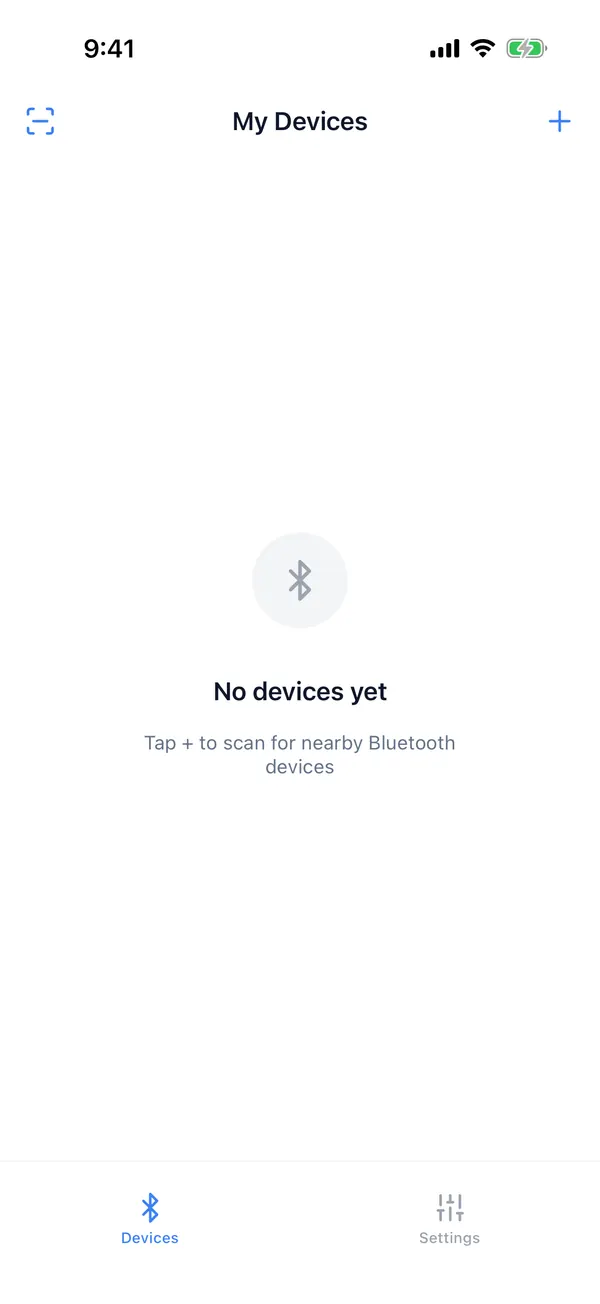
1Tap the scan icon at the top left
It is in the title bar of the Devices tab.
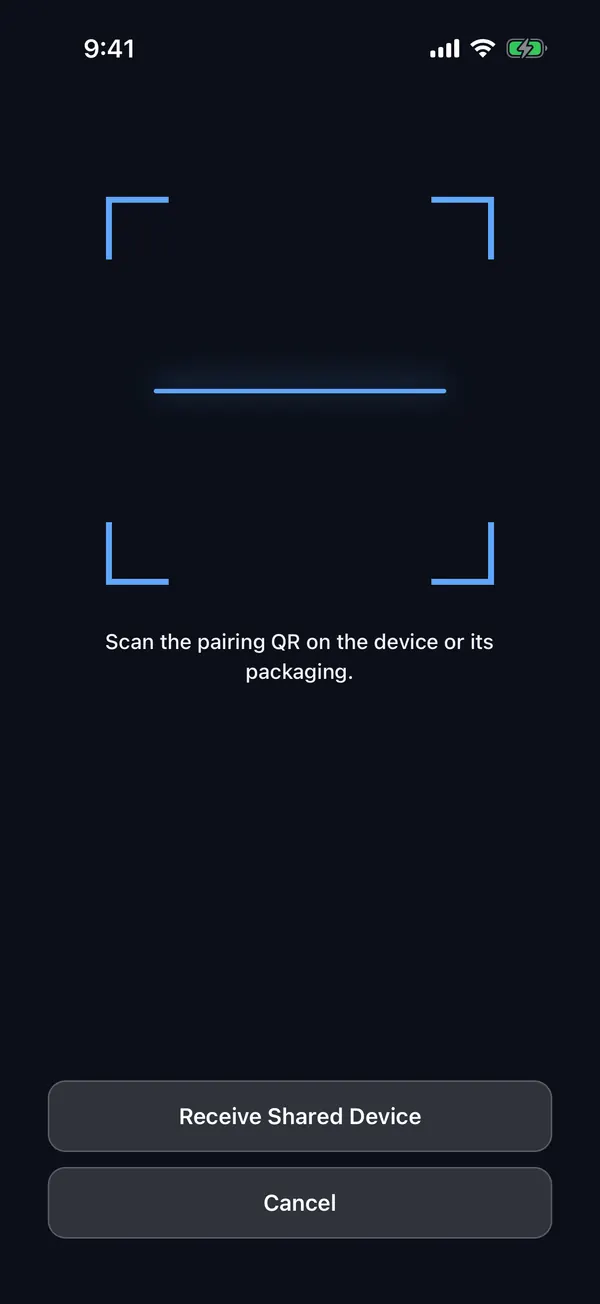
2Point at the QR code on the device
Once the code is read, the screen switches to the pairing progress.
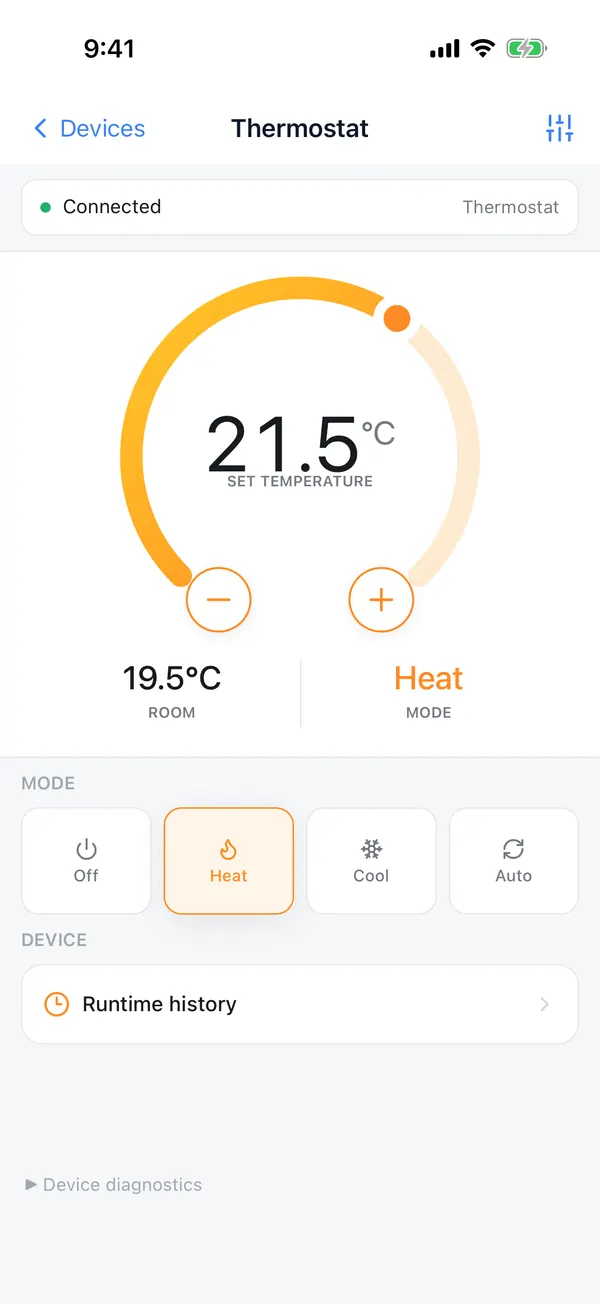
3Paired: the controls open
What opens is the product's applet (a thermostat is shown), and the device is saved to My Devices.
Pairing details depend on the product
The QR code tells the app which product it is, and the product decides how pairing works. With the current products:
Thermostat
Pairing starts as soon as the QR code is scanned. No setup code to type.
Thermostatic radiator valve (TRV)
Press the button on the valve to open its pairing window before scanning. The app looks for a valve in pairing mode nearby. The window closes after a while; open it again if it has.
Matter devices from other brands
The app can read Matter QR codes but adds only RtiTek products. For other brands, it tells you to use that brand's own app.
Way 2
Scan nearby devices and enter the setup code
Tap + at the top right of the Devices tab and the app lists the devices advertising nearby. Pick the one to add and enter the 11-digit setup code printed on it.
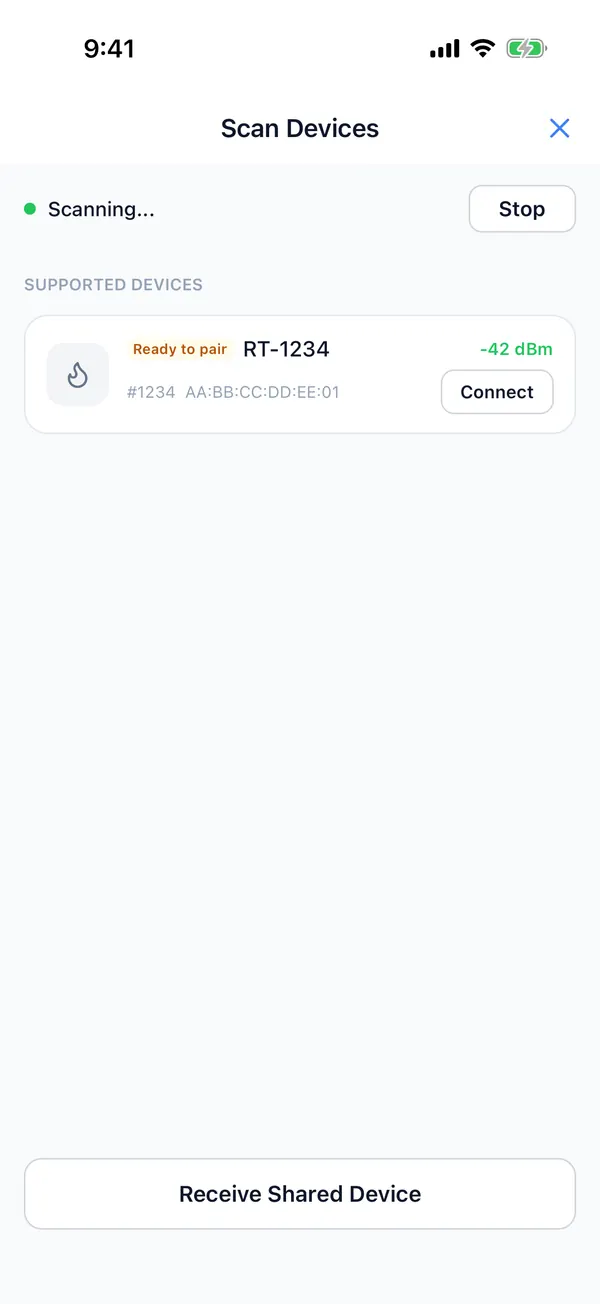
Step 1: find it in the list
- 1
Scan status
A green dot means Bluetooth is on, a red dot means it is off. The button on the right stops or restarts the scan.
- 2
Pairing state
"Ready to pair" can be added right away. "Paired" means it is bound to another phone, "Locked" means the setup code was entered wrong too many times, and "Pairing window closed" means you need to reopen it on the device.
- 3
Signal strength
The closer the number is to 0, the stronger the signal. The color goes from green (strong) to red (weak).
- 4
Discriminator
A four-digit number such as #1234. If you have several devices of the same model, match it with the number on the device label.
- 5
Connect
Only devices in the Supported Devices group can be tapped. A device disappears from the list about 5 seconds after it stops advertising, so the list only shows devices you can connect to now.
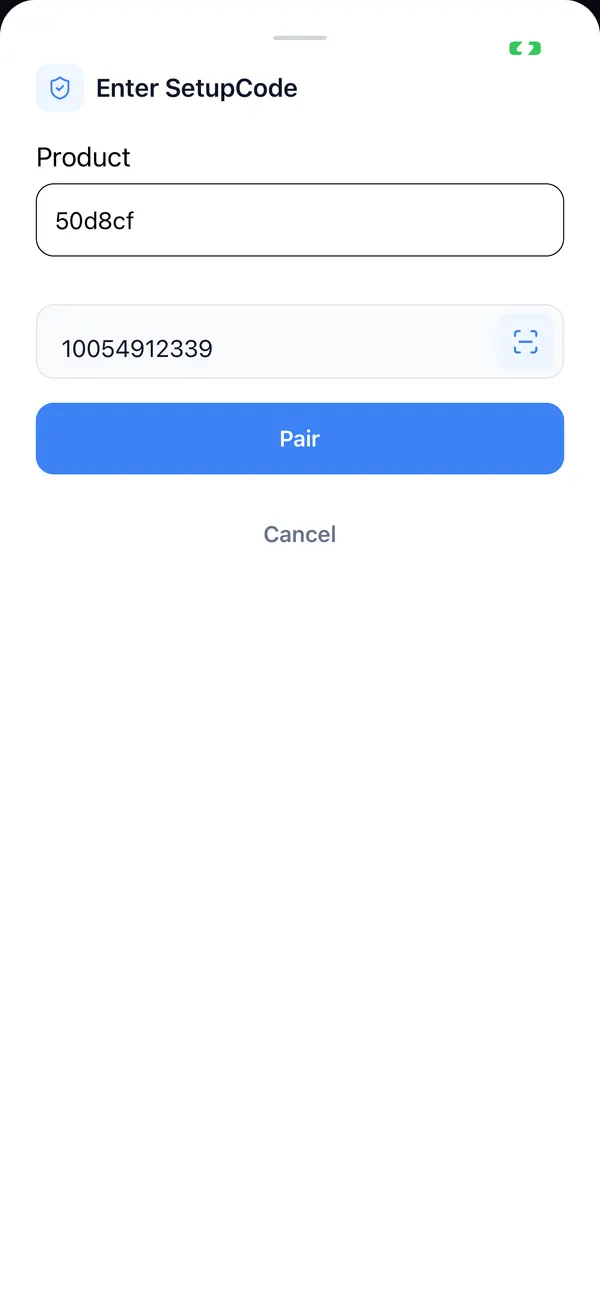
Step 2: enter the setup code
After you tap "Connect", the app connects to the device and then shows the "Enter SetupCode" form.
- 1
Product: choose the model
The list only shows products of the same category as this device.
- 2
Type the 11-digit setup code
Hyphens are optional. A typo shows "Not a valid SetupCode"; a code that belongs to another device asks you to scan again.
- 3
Or scan the QR code
Tap the scan icon at the right of the field and scan the QR code on the device. The app checks that it is the same device.
- 4
Tap "Pair"
The progress that follows is the same as when you scan the QR code.
What you see while pairing
While pairing, the current step is shown at the top, and each finished step gets a check mark in the list below. When pairing succeeds, the controls open.
- If several matching devices are nearby when you scan a QR code, you may see "Trying next matching device (1/2)…". This is normal.
- Adding a TRV has an extra step: "Verifying the new key with the valve…".
- A device does nothing else while it is pairing. Using it from elsewhere at that time shows "This device is being paired. Wait for pairing to finish, then try again."
RT-1234
Pairing…
- Starting Bluetooth…
- Looking for your device…
- Connecting…
- Pairing…
- Saving device…
- Paired!
Step names as shown in the app (excerpt)
Pairing failed? Read the message first
When pairing fails, the screen shows "Pairing failed", the reason and a line of small text (reason: … · step: …). Below are the most common messages and what to do. When you report a problem, include a screenshot of that small line.
“No commissionable device nearby matches this QR product and discriminator.”
Make sure the device is powered, ready to pair and within 1 to 2 meters, and that you scanned this device's own QR code.
“This device is already paired with another phone. Factory-reset it before pairing again.”
The device is bound to another phone. Tap "Unbind" on that phone, or factory-reset the device as its manual describes, then add it again.
“Device is locked. Try again in N seconds.”
The setup code was entered wrong several times, so the device refuses pairing for a while. Wait for the countdown; if the message asks you to press and hold the button to factory-reset, do that.
“Location is off, so the device cannot be found. Turn on Location and try again.”
On Android 11 and earlier, turn on Location in the system settings.
“Bluetooth permission is required to pair.”
In the system settings, find RtiTek and allow Bluetooth (or "Nearby devices").
“The valve is not in pairing mode. Press its button to open the pairing window.”
A TRV accepts pairing only while its pairing window is open, and the window closes after a while. Press the button on the valve to reopen it, then scan again.
“N pairable valves found. Move closer to the one you scanned and try again.”
Several TRVs nearby are in pairing mode. Move closer to the one you want, or take the others out of pairing mode.
“This device uses an unsupported protocol version.”
The device firmware and the app versions do not match. Update the app first; if that does not help, contact us.