Check status, open controls, change settings
The device list and the device settings are part of the app and work the same for every product. The controls you see after tapping a device are the product's own applet. This page covers the device list and applets first, then walks through the thermostat and TRV applets as examples, and ends with the device settings.
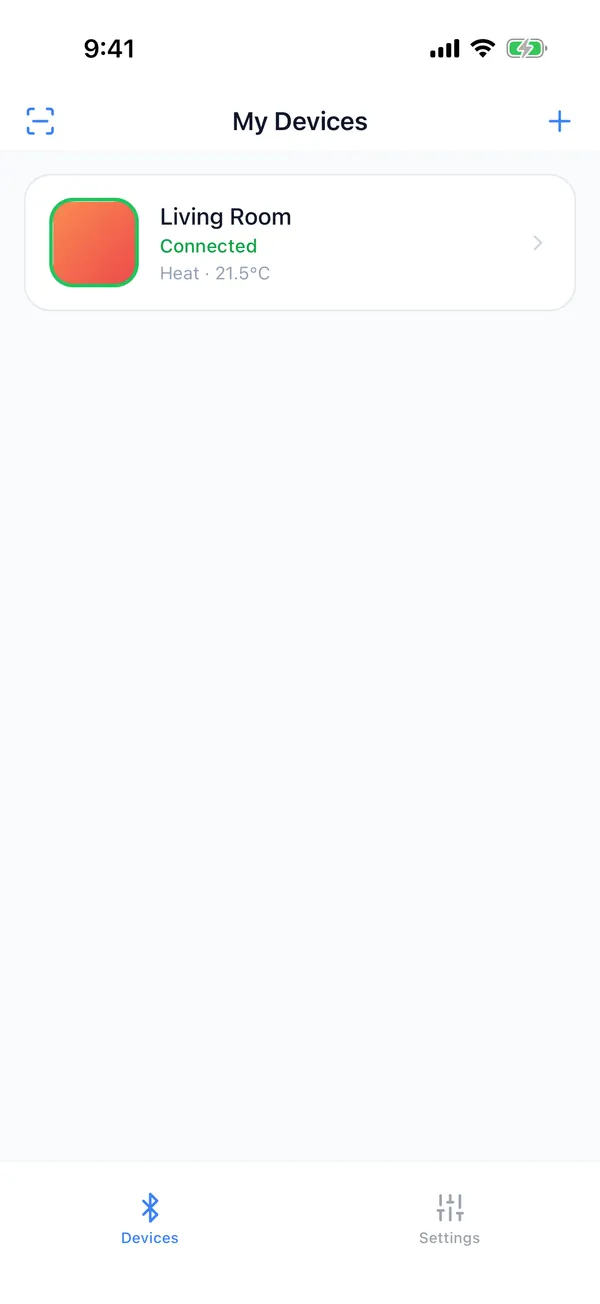
Device list: all products together
Devices of every category and model share one list. While you are on the Devices tab, the app keeps scanning for nearby Bluetooth signals, so a saved device shows "In range" as soon as it is nearby, without opening the scan screen.
- 1
Device picture
Gets a green ring while connected.
- 2
Name and connection status
You can rename the device in its settings, for example to a room name. The line below is the connection status.
- 3
Status summary
The status read at the last connection, such as a thermostat's "Heat · 21.5°C". While not connected it shows the old value; if nothing was ever read, it shows "No data reported".
Connected
The phone is connected to the device and can control it. The device picture gets a green ring.
In range
Its Bluetooth signal was received in the last 20 seconds, but it is not connected. Tap it and the app connects.
Not in range
No signal for more than 20 seconds: the device may be out of battery, too far away, or connected to another phone.
Orange messages
For example "Saved credentials may no longer be valid". The record needs attention; open the device to see what to do, or see the Help page.
Connected devices come first, then devices in range, then devices not in range.
The controls are the product's own applet
After you tap a device, the top bar belongs to the app and the controls below are the applet the product names. The picture uses a thermostat: the blue frame is the app, the orange frame is the thermostat's applet.
- The product decides which applet opens. The app opens the applet named by the device's product. Different models in the same category can use different applets.
- Applets update on their own. They are released separately from the app; with automatic updates on, the app fetches new versions when it is online. See Updates.
- Works offline too. The app ships with built-in versions of the current products' applets, and versions you downloaded stay on the phone.
- The top bar belongs to the app. On the left it goes back to the device list; the settings icon on the right opens the device settings. It is the same for every product.
If a product has no applet yet, the screen says "This product has no applet yet."
Thermostat applet
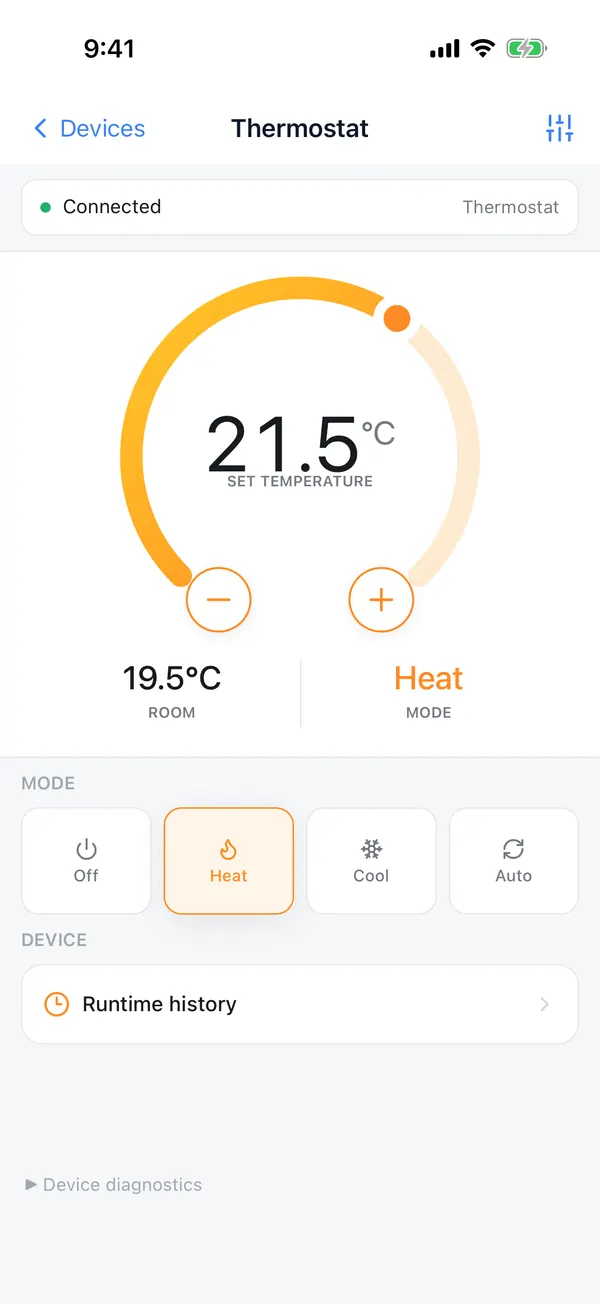
Here is the thermostat's applet, item by item. When you open it, the app connects to the device, and the controls stay gray until it is connected. Apart from the settings icon (1), which belongs to the app, everything here is part of the thermostat's applet.
- 1
Device settings (app)
Rename, disconnect, update firmware, share the device and more. The same for every product; see the last section of this page.
- 2
Connection status
Connected, Connecting… or Disconnected. While disconnected, a Connect / Reconnect button appears here.
- 3
Target temperature
Drag the dot on the dial; the value is sent when you let go.
- 4
− and +
Fine-tune in the product's step size, for example 0.5 °C.
- 5
Room
The room temperature measured by the device.
- 6
Mode
The mode the device is running in.
- 7
Mode buttons
Off, Heat, Cool and Auto. Tap one to send it.
- 8
Runtime history
Pick 1 day, 3 days, 7 days or all to see the room and target temperature curves and the mode changes recorded by the device. The data is read from the device, so large ranges take a few seconds.
Shown when the product supports them
"Child lock", and "Display unit" to switch the device screen between °C and °F. Less common items are in the collapsible "Device diagnostics" section at the bottom.
TRV applet
The TRV's applet lists what the device supports in groups. Changes are sent right away, and the screen refreshes when the device reports back. Below, in page order; the names match the labels on screen.
Based on the TRV applet built into app version 0.6.7; items may change when the applet is updated.
Status and temperature
- Connection / Heating / Battery / Window
- Connection state, whether it is heating, battery level and open window detection state.
- Temperature / Current Setpoint
- The current temperature and the target temperature in effect.
Work Mode
- Manual
- Set the target temperature yourself (Setpoint).
- Auto
- Follows the weekly schedule; the page shows the target temperature of auto mode.
- Boost
- Heats up quickly for the number of minutes in Boost Duration (0 to 120).
- Holiday
- Keeps the Holiday Setpoint for the number of days in Holiday Days Remaining.
- Frost
- Keeps the frost protection temperature set in Frost Protection Setpoint.
- Temporary manual
- Starts when you change the temperature on the valve itself and ends at the next schedule point.
Settings
- Child Lock
- Locks the buttons on the device.
- Open Window Detection
- Pauses heating when an open window is detected.
- Temperature Calibration
- Corrects the measured temperature when it differs from the real one (±9.9 °C).
- Display Direction
- Turns the screen to match how the valve is mounted: Up or Down.
- Low Battery Valve Opening
- How far the valve stays open when the battery is low.
- Smart Temperature Control / Control Hysteresis / Preheating
- Advanced settings. The device does not report the current Preheating value, so the page cannot show whether it is on or off.
Schedule and calibration
- Schedule
- Weekly schedule with up to 6 time slots per day. "Copy to all days" copies a day to the whole week, and "Save schedule" writes it to the device.
- Valve Calibration
- Tap Start to calibrate the valve; the page shows the calibration state and result.
Boost and Holiday settings are sent together when you choose that mode; changes while the mode runs take effect at once. When either mode ends, the valve switches to the mode set in "Mode After Temporary Mode".
The first time you open it, the schedule shows "The schedule has not been read from the device yet." You can edit it once the device's schedule has been read.
Device settings: from the app, the same for every product
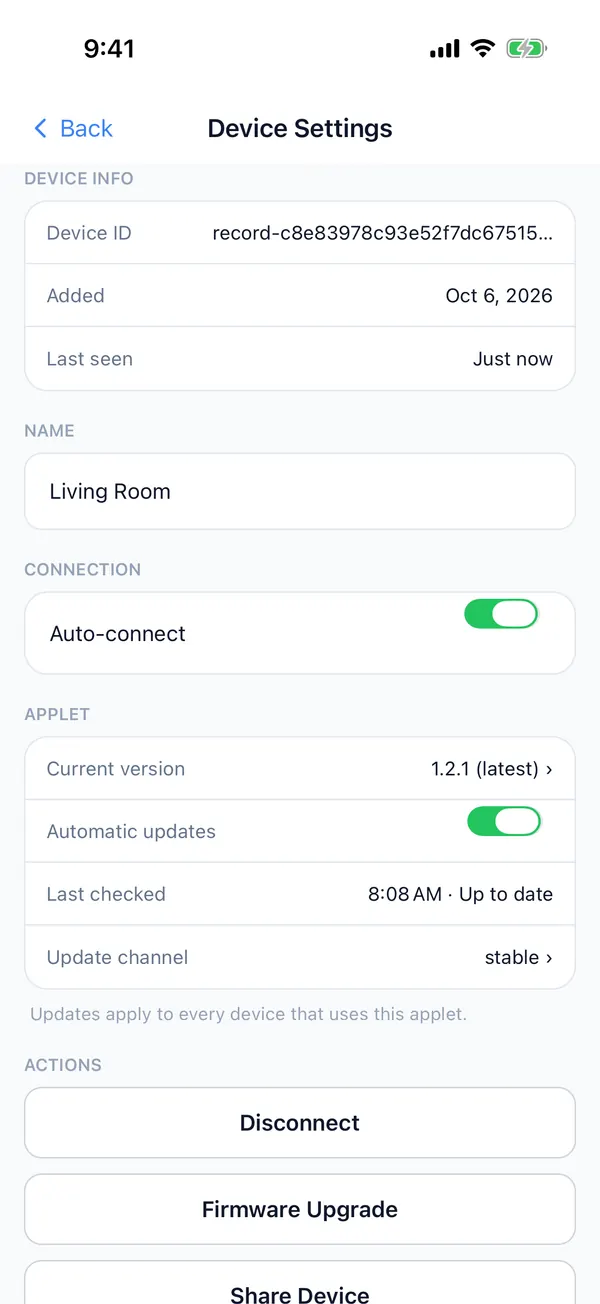
Open them with the settings icon at the top right of the controls. Device info (when it was added, when it was last seen) is at the top. A few items appear only if the product supports them, such as "Rotate Device Key".
- 1
Name
The name shown in the device list, up to 64 characters. It is saved when you leave the field; the device's original name is kept for identification.
- 2
Auto-connect
On by default. When off, opening the controls does not connect automatically; tap Connect yourself.
- 3
Applet
The version of this product's applet in use, automatic updates and the update channel. See Updates.
- 4
Disconnect
Available while connected. After you disconnect, the device advertises again, and only then can other phones connect to it.
- 5
Firmware Upgrade
Available while connected; opens the update screen. See Updates.
Further down: Share Device, Unbind
Sharing the device with your family, taking access back and removing the device are covered in Share & manage.